Analytics cookies. Can we use Google Analytics and its cookies to see how visitors use this site? Change this any time under Cookie settings in the footer. Privacy policy
A Google review NFC card turns a tap into a 5-star review — the NTAG chip opens your Google review page directly — the offline-to-online trick for shops and restaurants that live on ratings.
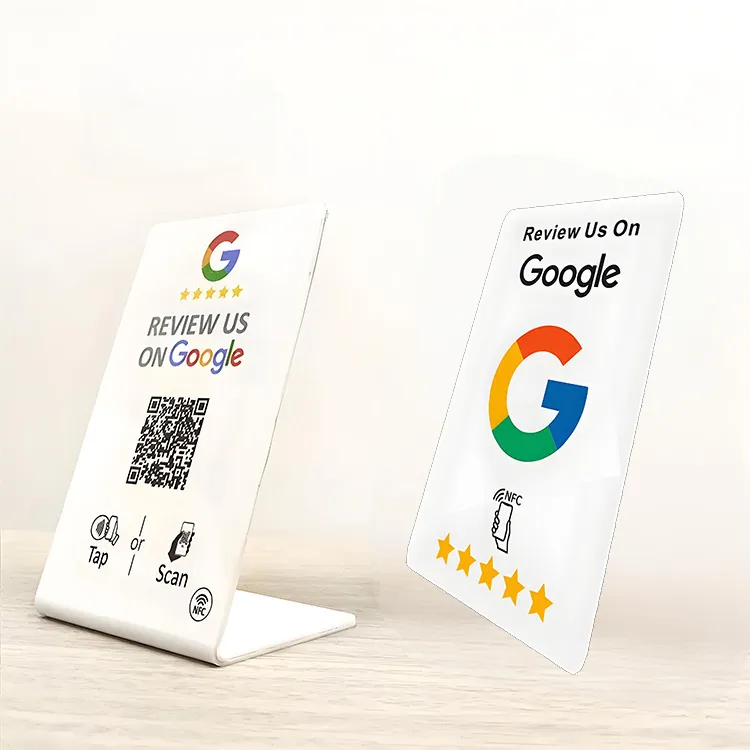
A Google review NFC card opens your business's Google review page when a customer taps it with an NFC phone, helping collect feedback in shops, restaurants and at events. Made from acrylic and customisable with your branding and a QR code. Send your review link and artwork for a quote.
Free standard samples · Quotation within one business day
Product details
Simple and beautiful appearance
An acrylic body keeps the card clean and elegant.
Compact and Portable
The card is small, lightweight, and can be easily placed at checkout counters, tables, or given to customers, making it convenient for any business setup.
Customizable Design
Can be tailored with the business’s branding, logo, and personalized messaging to create a professional and engaging look.
Specification:
Product Name
Google Review NFC Card
Size
80mm*50mm, 105mm*70mm, 165mm*108mm, or customized
Material
Acrylic
Chip Type
NFC chip
Protocol
ISO14443A
Crafts
unique qr code, barcode
Applications
restaurants, shopping malls, events,etc.
Benefit
What is the benefit of a Google review NFC card
Easy to Use: Customers can leave a review with a simple tap of their NFC-enabled smartphone, making the process quick and effortless.
Boosts Online Reputation: Encourages customers to provide feedback, helping businesses collect more genuine reviews on Google, which enhances credibility and visibility.
Enhances Customer Engagement: Provides an innovative way to interact with customers, making them feel valued and more likely to share their experiences.
Cost-Effective Marketing Tool: Offers a low-cost method to promote the business online and attract new customers through genuine reviews.
Real-Time Feedback: Enables businesses to receive real-time feedback, allowing for quick response to customer concerns and continuous improvement.
No App Required: Current iPhones and Android phones open the review link directly, with no app to download, reducing barriers for customers to leave a review.
How a Google review NFC card works
A Google review NFC card is an acrylic block, a printed PVC or wooden card, a table stand or a sticker with a small NFC chip inside, encoded with one link: the review link for your own Google Business Profile. When a customer taps it with a phone, the phone opens that link and the Google review screen for your business appears, with the star rating ready. The chip is an NTAG working at 13.56 MHz on ISO/IEC 14443 Type A, an NFC Forum Type 2 tag that phones read without an app. The card stores no data about the customer and reports no statistics to you or to Google; it is a fast, physical shortcut to the page where the review is written.
No app is needed on a current iPhone or Android phone; the NFC cards page sets out which older models need an extra step first. Print a QR code to the same link beside the tap zone: it serves phones without NFC or with NFC switched off, older iPhones, and a customer who already has the camera open, because iPhone background reading pauses while the camera is in use (Apple Core NFC). Every tap and scan goes to your public Google review page, so the card cannot screen or filter a review before it posts.
Getting your Google review link
The link you send us is your own — the one Google generates for your business, not a generic address. In your Google Business Profile, select Read reviews, then Get more reviews, and copy the short link, which looks like `g.page/r/…` (Google's instructions). Google also offers a review QR code there (computer browser only). That link opens the review screen for your business directly. You can also build the place-ID review URL, of the form `https://search.google.com/local/writereview?placeid=…`, using Google's Place ID Finder. Both forms work on current iPhone and Android.
Confirm you manage the Business Profile. A card pointing at a profile someone else controls will break the day that ownership changes.
Copy the short `g.page/r/…` link from Get more reviews, or build the place-ID `writereview` URL.
Test the link in a private browser tab: it should open the *Rate and review* screen for the correct business, not a map listing or your home page.
Send us the link with your artwork and the format you want, and we encode it to the chip.
Encoding, testing and keeping the link editable
We write the link as a plain NDEF URI record — a plain `https` link, which is the format every modern phone opens without an app or a setup step. There is no need for app-launch records, custom MIME types or Smart Posters; they add nothing for a review card and fail on some phones. After the link is confirmed we can lock the chip so a stray tap from an NFC-writer app cannot change it; locking is one-way, so we lock only once the link is verified.
Test on the phones your customers carry — at least a current iPhone, a current Android and an older mid-range Android — and check that the tap opens the correct review screen through a phone case and on the actual counter. Once the link is written, we read each card back to check it, and the order includes a data report in Excel, CSV or XML (encoding service).
You have a choice about how stable to make the link. Encoding the Google link directly on the chip is the simplest option and needs no infrastructure of your own, but if your Place ID or profile ever changes you need new cards, or a re-encode of a rewritable chip. Encoding a link on your own domain that redirects to the Google review page keeps the printed cards working through a profile change — you update the redirect once instead of reprinting — at the cost of running that redirect yourself. The redirect must forward every tap straight to Google; a rating screen in between is review gating. For a single shop the direct link is usually enough; for a chain the redirect is worth the effort.
How to set up a review NFC tag yourself
To set up a review NFC tag, copy your Google review link, write it to an NTAG213 tag as a single `https` link with an NFC writer app, test it on an iPhone and an Android phone, then lock it or set a write password. Distributors can order blank tags and encode them in-house:
Copy and test the review link (see *Getting your Google review link* above).
Write the link as one `https` URI record with an NFC writer app such as NXP's NFC TagWriter; iPhone background reading uses only the first URI record. For batches, a desktop NFC reader/writer locks or password-protects tags consistently.
Protect the tag (options below) and log which link went on which batch.
Protection
Effect on an NTAG 21x chip
Use it when
None
Any NFC phone with a writer app can overwrite the link
Testing only
Write password
Still readable by everyone; rewriting needs the 32-bit password
The link may change later
Permanent lock
Lock bits make the link pages read-only; irreversible. Also set CFGLCK so no one can switch on a password of their own
The link is final and the card is in public
All three are in the NXP NTAG213/215/216 datasheet (§8.5.2–8.5.3, §8.5.7, §8.8), which calls the password a convenience, not strong security. We can encode and lock cards before shipping: state the requirement in the order, and agree any password handover separately, never in the inquiry form (encoding service).
Chip and encoding options
Chip
User memory
Note
NTAG213
144 bytes
Ample for a review URL; the usual choice
NTAG215
504 bytes
Headroom for a longer link or a second record
NTAG216
888 bytes
Largest NTAG 21x memory, rarely needed for a single link
A review link is short, so an NTAG213 is almost always enough (memory figures from the NXP NTAG datasheet). To check your own link, paste it into our NDEF generator and tag capacity checker, which shows its encoded size and whether it fits. Give any printed QR code the same link as the chip so both paths land on the same screen.
Formats: card, stand or sticker
Acrylic card or block for the counter, custom-printed with your logo and a review prompt; the standard body.
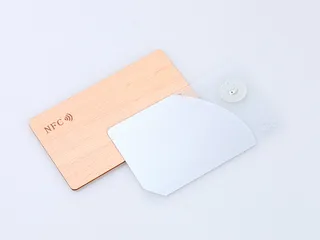
Printed PVC or wooden card for a hand-over at the till or table; see wooden RFID cards.
Table stand for restaurants, receptions and checkouts.
NFC sticker for a till, door or menu; see the NFC sticker.
The card only makes the ask easy; the rules on what you may ask are Google's, and they matter. In plain terms: you may invite every customer to leave an honest review, and removing friction with a tap is fine. You may not offer a discount, a free item, loyalty points or any other reward in exchange for a review. You may not ask only the customers you expect to be happy while routing unhappy ones to a private form first — that practice, called review gating, is against Google's policy. And you may not write reviews for customers, or ask staff, friends or family who were not customers to post them.
Google's Maps content policy also says merchants should not require or pressure customers to review while on the premises, or ask staff to collect a set number of reviews.
An NFC review card is structurally clean on the biggest of these points: every tap opens the same public Google page for every customer, so there is no sentiment screen in the middle. Policies do change, so check Google's current review content policy and its get-more-reviews guidance before you print, and keep the staff prompt honest — invite everyone, not only the ones you expect to give five stars.
Google review NFC card design and copy
A good Google review NFC card design gives the card one job. A customer looks at it for only a few seconds between finishing service and the next thing demanding their attention, so the action has to be obvious at a glance. Put the ask first and the branding second, name Google so the customer knows where the tap goes, and use a short line with an imperative verb.
Lead with the action. Short lines such as "Tap to leave us a Google review", "Scan or tap — a quick Google review helps us" or "Rate us on Google" work better than "We value your feedback". Keep the main line to a handful of words, and add a practical second line such as "Takes about 30 seconds".
Keep the ask neutral. Write "Review us on Google", not "Give us 5 stars" or a line telling customers what to mention; Google's Maps content policy bars soliciting only positive reviews and requesting specific content.
One action per card. A single review link, one tap target and, if you want a fallback, one QR code to the same page. Extra links and offers split the customer's attention and lower the chance they act.
Show both tap and scan. A tap icon printed over the chip plus a QR code shows customers what to do without instructions and covers phones that do not tap easily; keep the four-module clear margin around the QR code that its developer DENSO WAVE specifies.
Use the Google name correctly. Naming Google builds trust, but the wordmark and G mark have usage rules — follow Google's brand guidelines for on-card use rather than recolouring or redrawing the mark.
The body can be an acrylic block or card, a printed PVC card, a wooden card, a table stand or a sticker, in sizes from a business-card 80 x 50 mm up to a 165 x 108 mm counter block, or a custom shape (see the specification above). A matte or soft-touch finish reads more reliably than gloss, which throws glare under counter lighting. If the card will sit on a steel counter, tell us — metal detunes the NFC antenna, and an on-metal construction corrects for it.
Google review stand and board ideas
Popular Google review display ideas are a counter stand, a board by the exit, an NFC sticker on a menu or door, and a take-home card; each carries a tap icon, a QR code to the same link and a neutral line such as "Review us on Google".
Idea
How it is built
Design note
Counter stand
Acrylic block or stand
Tap zone and QR code on the customer's side of the till
Exit board
Your sign with an NFC sticker behind the tap icon, or a custom-size acrylic block (confirmed in the quotation)
At hand height on the way out, not behind the till; only thin, non-metal material over the chip, checked on a sample
Take-home card
PVC, wooden or acrylic card
Lets the customer review later, without being asked on the spot
The customer has paused to pay; a staff hand-over fits the moment
Restaurant table
Table tent or stand
Reaches the guest during the meal, before the bill arrives
Bill folder or receipt
Card tucked into the check presenter
Caught at the settle-up moment, while the visit is fresh
Hotel checkout
Card or stand at the front desk
Departure is a natural pause; staff can prompt at check-out
Delivery bag
Printed insert or sticker on the bag
Reaches take-away and delivery customers who never see the counter
Service van or on-site
Card handed over at job completion
For trades and mobile services, the review moment is at the customer's door
Placement decides more than the card body does. The card works best where the customer has just finished the visit, has a free hand and is paused for a moment — the settle-up at a table, the hand-over at a counter, the check-out at a hotel desk. Hand it over with a short prompt; a card stranded on a wall behind the till is easy to miss.
Prompting customers: a staff playbook
The verbal ask is what turns a card on the counter into reviews. Ask at the natural end of the visit — after the bill is settled, the checkout is done or the service is finished — with the card already in hand so there is no fumbling. Keep it to one warm sentence that names Google and implies the action.
Restaurant: "Thanks for coming in. If you have a moment, a quick Google review really helps us — just tap here."
Retail: "Thanks for shopping with us. If you have thirty seconds for a Google review, tap your phone on this."
Hotel front desk: "Thanks for staying with us. If you'd like to, a Google review helps the next traveller find us."
Salon or clinic: "Thank you for coming in. If you'd like to leave a Google review, you can tap here or take the card home."
Handle an unhappy customer first. If someone had a poor experience, resolve it, but do not hold the card back or send them to a private form instead: the policy is to invite everyone rather than steer only happy customers to Google. In tourist-heavy venues, a short two-line ask in two languages beats one long line. A verbal prompt drifts within a few weeks without a reminder, so keep the script written down where staff can see it.
Measuring results
The card reports no counts to you or to Google, and you cannot measure it the way you measure a web campaign. The review link points to Google's own page, so attaching your own UTM tags to it does not help — Google does not pass those parameters back to any dashboard you control. Measure the outcome instead: watch your review count and star rating over time in Google Business Profile, and use the profile's own performance view for calls, direction requests and clicks. Recent reviews carry more weight than old ones, so a steady trickle is worth more than a one-off burst.
If you do need per-card or per-location tap counts, route the link through a redirect on your own domain and count the taps there, before the redirect forwards the customer to Google. That is the only reliable way to attribute taps, and it is the same redirect that keeps your cards editable.
Multi-location roll-outs
Each location has its own Google Business Profile and its own review link, so give each location its own card — never a single corporate link, which would send every review to the wrong profile. Number or name the locations in a simple record that maps each one to its link and its card batch, so a reprint six months later is unambiguous. The redirect pattern earns its keep here: the printed cards stay identical while each location's redirect points at its own profile, and a profile change or a franchise hand-over becomes a one-line edit rather than a reprint. Plan a modest reorder into the budget as cards are worn, lost or refreshed.
Ordering
Google review NFC cards are quote-only. Send us your Google Business Profile review link and your artwork, tell us the format — acrylic card or block, PVC or wooden card, table stand or sticker — the size and the quantity, and we confirm the price and lead time in the quotation. We have manufactured RFID and NFC products in our Shenzhen factory since 2008. Standard samples are free and customised samples carry a setup fee; standard products run a 2 to 3 week lead time, with larger orders scheduled individually, and we reply within one business day. Printing, numbering, encoding and QR printing are available. We make the cards, stands, stickers and encoded tags; we do not provide review-management software, review monitoring, tap analytics or redirect hosting. Start on the contact form, request a sample pack, or browse the wider RFID cards range and the NFC business card programme guide.
Plan the application
Frequently asked questions
Where do I get the review link to put on the card?
From your Google Business Profile: select Read reviews, then Get more reviews, and copy the review link, or use the place-ID review URL. Send that link to us and we encode it to the chip. If you do not have the profile set up yet, that has to be done first on Google.
Does the customer need an app to leave a review?
No. A tap opens your Google review page in the phone's browser or Google app. The customer signs in with their own Google account to post the review; nothing is stored on the card.
What happens if my Google review link changes?
The card points to the link encoded on it. If your review URL changes, you need new cards, or a re-encode if the chip was password-protected rather than locked. Tell us in advance if you expect the link to change.
Can someone overwrite the link on my Google review NFC card?
Any NFC phone with a writer app can rewrite an unprotected tag. NTAG 21x lock bits make the link permanently read-only; a 32-bit write password stops casual rewrites but lets the password holder change the link. On a card in public, also lock the configuration pages so no one can switch on a password of their own.
Can I add a QR code as well as the NFC tap?
Yes. We can print a QR code to the same review page alongside the NFC area. It reaches phones without NFC or with NFC switched off, an iPhone 7, 8 or X whose owner has not opened NFC Tag Reader from Control Center, and customers who tap at the wrong spot.
Is it against Google's policy to use an NFC card to ask for reviews?
No. Google lets you invite customers to leave honest reviews, and a tap card just removes the friction. What is against policy is offering a reward for a review, asking only the customers you expect to be happy while routing others to a private form (review gating), or posting reviews for customers. Because the card opens the same public Google page for everyone, it avoids the gating problem by design. Check Google's current review policy before you print, as the rules change over time.
Do I need a separate card for each location?
Yes. Each location has its own Google Business Profile and its own review link, so each needs its own card. A single corporate link would send every review to one profile. For a chain, encoding a per-location redirect on your own domain lets the printed cards stay identical while each one points at the right profile, which also makes reorders and profile changes easier.
Can I track how many people tap the card?
Not from the card or the Google link itself. The link goes to Google's own page, so you cannot attach UTM tags and read them back. Track the outcome in Google Business Profile instead — your review count over time and the performance view. If you need actual tap counts, route the link through a redirect on your own domain and count the taps there before it forwards to Google.
Buyer guides
How NFC Tags Work with iPhone & AndroidHow NFC tags work with iPhone and Android: the 13.56 MHz link, NDEF records, background reading, metal interference, and fixes when a tag won't scan.
How to Read an RFID Tag Quotation, Line by LineWhat decides RFID card and tag prices, and how to compare quotations line by line: unit-price basis, tooling, encoding, samples, freight and Incoterms.